How to Create Professional Certificates Online Without Any Design Experience
 Johnathan Parker |
May 5, 2026 |
10:21 pm
Johnathan Parker |
May 5, 2026 |
10:21 pm
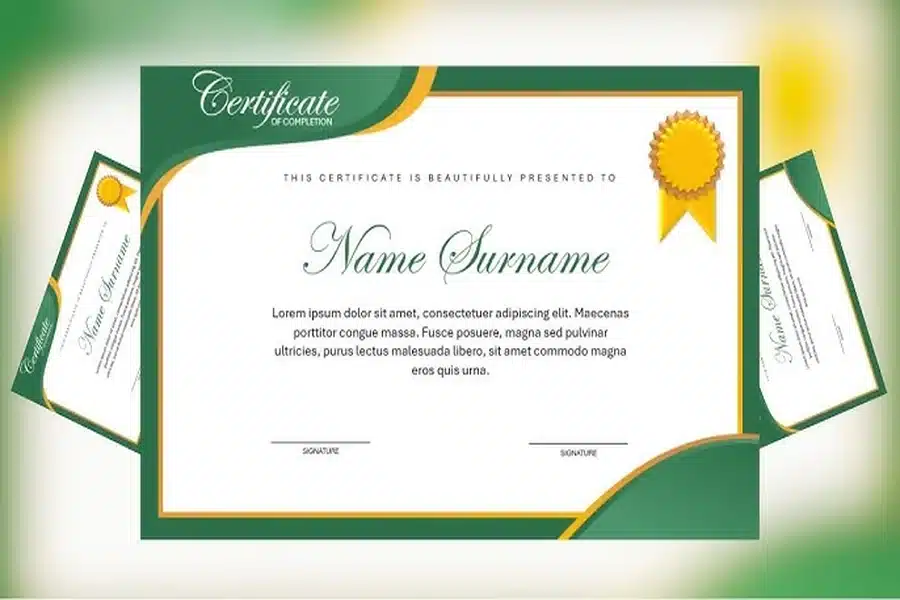
Whether you are an HR manager putting together employee recognition awards, a teacher celebrating student achievements, or a small business owner issuing gift certificates, designing something that looks polished and official can feel out of reach if you have never touched a design program. The good news is that modern online certificate creation tools have made the entire process remarkably simple, requiring nothing more than a browser, a few minutes of your time, and a clear idea of what you want to say. You do not need to know anything about typography, color theory, or graphic design to create a certificate that looks like it came from a professional studio. This guide will walk you through everything you need to know to create beautiful, customized certificates online, fast and with zero design experience required.
Why Online Certificate Tools Are a Game-Changer for Non-Designers
Not long ago, creating a professional certificate meant hiring a graphic designer, purchasing expensive software, or settling for a bland template from a word processor. The results were often either costly or underwhelming. Today, browser-based certificate creation platforms have leveled the playing field entirely. These tools are built around drag-and-drop editing, pre-designed templates, and intuitive customization options that anyone can learn in minutes.
The key shift is that the heavy design lifting has already been done for you. Fonts have been paired thoughtfully, spacing and proportions are already balanced, and color palettes are curated so that everything looks cohesive by default. All you need to do is swap in your own text, add a logo or signature, and download the finished product.
This matters especially for people who create certificates regularly but informally, such as teachers recognizing student accomplishments, coaches honoring athletic achievements, nonprofit coordinators issuing volunteer appreciation certificates, or small business owners distributing training completion credentials. For all of these people, time and simplicity are the deciding factors, and online tools deliver both.
Understanding What Makes a Certificate Look Professional
Before diving into tips and how-tos, it helps to understand the basic elements that give a certificate its official, polished appearance. A well-designed certificate typically includes a clear title (such as “Certificate of Achievement” or “Certificate of Completion”), the recipient’s name, the reason for the award or recognition, the date, and a signature line from whoever is issuing the certificate.
Beyond the text, visual elements like borders, seals, ribbons, and decorative frames signal formality and elevate the overall look. A consistent color palette tied to your organization or event also makes a certificate feel intentional rather than generic. Fonts matter too: pairing a clean serif or decorative headline font with a simple body font is one of the easiest ways to create visual hierarchy without any design training.
The good news is that quality templates handle all of these design decisions automatically. Starting from a template means those principles are already applied, and your job is simply to personalize.
10 Tips for Creating Great Certificates Online With No Design Experience
- Start With a Template That Fits the Tone
The first step in any certificate project is choosing a template that matches the formality and feel of the occasion. A graduation diploma calls for a different visual style than a fun employee-of-the-month award or a gift certificate for a local bakery. Most online tools offer a wide variety of templates organized by category. Browse a few options before committing, and look for one that already resembles the mood you want to convey. Starting in the right direction saves significant time compared to starting from scratch.
- Customize the Text Before Anything Else
Once you have a template, update all of the placeholder text first. Fill in the recipient’s name, the reason for the award, your organization’s name, and the date. Reading through all of the text before making visual changes helps you catch errors early and ensures you do not have to undo design work because something was misspelled. This step-first approach also helps you see whether the template’s layout supports the amount of text you actually need.
- Use Your Organization’s Real Colors and Fonts
One of the fastest ways to make a certificate look professional is to bring in your actual brand colors and typefaces. Even if your organization is a small school, a local gym, or a home-based business, consistency between your existing materials and your certificates signals that the award is legitimate and intentional. Most online tools let you enter specific color hex codes and choose from a large font library. If you already have a logo, uploading it takes the branding even further.
- Upload a Digital Signature for Authenticity
A certificate without a signature often feels incomplete. Many online certificate tools allow you to upload an image of a handwritten signature, which you can then resize and place directly onto the design. To create a signature image, simply sign your name on white paper, take a clear photo or scan it, and upload it. Some tools even allow you to use a transparent background on the image so the signature blends naturally with the certificate’s background. This small touch adds a significant amount of credibility and formality to the final product.
- Add Decorative Elements Strategically
Borders, seals, ribbons, and ornamental shapes can all enhance the official look of a certificate, but using too many at once creates clutter. Choose one or two accent elements that complement the template’s existing style rather than competing with it. A simple border or a small seal in the corner of a certificate is usually enough to elevate the design without overwhelming the eye. Most platforms have built-in libraries of these elements that you can drag directly onto the canvas.
- Adjust Font Sizes to Create Visual Hierarchy
Even without a design background, you can make a certificate look intentional by varying font sizes to indicate importance. The recipient’s name is usually the most prominent element and should be the largest text on the page. The award title or category typically comes second in size, followed by supporting details like the date and issuer information in smaller text. This layered approach guides the reader’s eye naturally and makes the certificate easier to read at a glance.
- Try a Practical How-To: Build a Certificate From Start to Finish in Minutes
Here is a simple walkthrough using the Adobe Express certificate maker to show just how fast the process can be. Start by visiting the tool and browsing the available templates. Select one that suits your occasion. Once the editor opens, click directly on any text element to replace it with your own wording. Use the left panel to explore design assets, including borders, icons, shapes, and background options. To add a logo, select the upload option and pull in your image file. When you are satisfied with the design, click the download button to save your certificate as a print-ready PDF or shareable image file. The entire process, from choosing a template to downloading a finished certificate, can take fewer than ten minutes even on your very first try.
- Think About Print vs. Digital Before You Finalize
Before downloading your certificate, decide how it will be delivered. If you plan to print it, make sure the dimensions are set to a standard page size (most commonly 8.5 by 11 inches in landscape orientation) and download in a high-resolution format, ideally as a PDF. If you are sharing digitally by email or social media, a JPEG or PNG file works well and is easy for recipients to save, display, or post. Some tools even let you resize the design with a single click, so you can generate both versions from the same project without starting over.
- Save Your Work as a Reusable Template
If you give out certificates regularly (for a recurring training program, a monthly employee recognition initiative, or an ongoing class), save time by turning your finished design into a reusable template. Most online platforms allow you to save any project and reopen it later. This way, you only need to change the recipient’s name and date each time instead of rebuilding the design from scratch. Over time, this single habit can save hours of work across dozens of individual certificates. Voomixi Com is accessible from any device.
- Proofread Carefully Before Downloading or Printing
This tip sounds simple, but it is one of the most important. A certificate with a misspelled name or an incorrect date undermines the professionalism of the recognition it represents. Before downloading, zoom in on every line of text and check names, dates, titles, and any formal language for accuracy. It also helps to have a second person look it over if possible. For printed certificates especially, catching an error before printing saves both time and resources.
Common Certificate Types You Can Create Online
Understanding the range of certificates that can be created with an online tool helps you recognize how versatile these platforms really are. You are not limited to a single format or use case.
Certificates of achievement and recognition are among the most common, used by schools, workplaces, and sports organizations to honor performance. Course completion certificates are widely used by educators, online course creators, and corporate trainers to formally acknowledge that someone has finished a program. Attendance certificates document participation in events, workshops, conferences, or seminars. Gift certificates serve a commercial purpose and can be created for any type of business that wants to offer a monetary credit or service package to customers. Volunteer appreciation certificates recognize the contributions of unpaid workers, which is particularly meaningful for nonprofits and community organizations.
Each of these types benefits from a slightly different visual tone, and the variety of templates available on leading platforms reflects that diversity. The right tool will let you switch between styles quickly without feeling like you need to start the whole design process over again.
How to Share and Distribute Your Certificates Effectively
Once your certificate is finished, how you deliver it matters. For in-person recognition events, printing is typically the most impactful option. Printed certificates on quality paper feel substantial and memorable to recipients. For remote teams, virtual classes, or large-scale events where mailing is impractical, digital delivery works well. Emailing a PDF directly to the recipient keeps the file high quality and easy to print later. Sharing a certificate image on social media, with the recipient’s permission, adds a public dimension to the recognition that many people find gratifying.
For organizations that issue certificates on a regular basis, building a consistent workflow around certificate delivery creates a more professional experience. This might mean sending certificates within a set timeframe after an event, using a standard email template to accompany the attachment, or keeping a simple record of who received what and when.
FAQs
Do I need to create an account to use an online certificate maker?
Most browser-based certificate tools allow you to start exploring templates and editing designs without creating an account. However, to save your work, download finished certificates, or access the full library of templates and design assets, you will typically need to register with a free account. Registration usually takes only a minute and unlocks features like cloud storage of your projects, which is especially useful if you plan to reuse your designs or come back to make updates later. Free plans on many platforms include a solid set of features that are more than sufficient for creating polished certificates without spending anything.
Can I create a certificate on my phone or tablet?
Yes, most modern online certificate makers are designed to work on mobile devices as well as desktop computers. Many have dedicated mobile apps in addition to their browser-based editors, making it easy to create and download certificates from wherever you are. That said, the desktop browser experience typically offers a larger canvas and easier access to all tools and panels, so if you have the option to work on a computer, that often makes the process a bit smoother. For quick edits or finalizing a design on the go, a tablet with a decent screen size works well.
How do I make my certificate look official enough for professional use?
The two most important factors in making a certificate look official are consistency and completeness. Make sure all text is spelled correctly, all required information is included (recipient name, award title, issuing organization, date, and signature), and the visual style is cohesive rather than cobbled together from mismatched elements. Using your organization’s real logo, colors, and fonts goes a long way toward lending legitimacy. Adding a seal, stamp, or border further signals formality. For certificates that need to carry legal or contractual weight, such as a gift certificate that represents a monetary value, it is also worth consulting your state’s consumer protection guidelines. You can use a resource like the Federal Trade Commission’s consumer information page to review relevant regulations around gift certificates and promotional materials.
What file format should I download my certificate in?
For printing, PDF is the best format because it preserves exact dimensions, fonts, and image quality regardless of what device or printer is used to open it. Most online tools offer a high-resolution PDF export option, and some specify whether the file is print-ready at 300 DPI or higher. For digital sharing via email or social media, a PNG or JPEG file is more practical because it is easier to view and attach without requiring a PDF reader. If you are creating both print and digital versions of the same certificate, check whether the tool offers a one-click resize or export option that lets you generate multiple formats from the same design file.
Can I create certificates for a large group of people at once?
Creating individual certificates for a large group can be time-consuming if done manually one by one. A practical approach for smaller batches is to create a single polished template, save it as a reusable project, and then update the recipient’s name for each version before downloading. For larger volumes, you may want to look into tools that support batch or bulk generation, which allows you to upload a spreadsheet of names and automatically generate a separate certificate for each entry. For managing the distribution side of the process at scale, a tool like Airtable can help you organize recipient information, track who has received certificates, and streamline your overall workflow without requiring any technical background.
Conclusion
Creating professional, customized certificates no longer requires a graphic design background or expensive software. With the right online tool and a handful of straightforward techniques, anyone can produce polished, personalized certificates in minutes. The key is starting with a strong template, making intentional customization choices, and following a simple workflow that covers everything from text and branding to file format and delivery.
Whether you are recognizing a student’s hard work, honoring a team member’s contributions, issuing a training completion credential, or offering a gift certificate to a loyal customer, a well-made certificate leaves a lasting impression. The time you invest in getting the design right reflects the value you place on the recipient and the occasion being recognized. With the tools and tips covered in this guide, you have everything you need to start creating certificates that feel as meaningful as they look.