Easy Customer Portal Setup: Support, Tickets, and Projects
 Johnathan Parker |
July 31, 2026 |
10:50 pm
Johnathan Parker |
July 31, 2026 |
10:50 pm
Support teams spend hours answering the same question: “Where is my ticket?” Status updates move by email, documents get lost in attachments, and SLA commitments live in spreadsheets nobody trusts. A customer portal gives clients a place to see this themselves, and it can be set up in days.
What breaks without a customer portal?
The pains show up after go-live. Support that felt fast during the sale becomes hard to reach, and finding the person responsible for a request turns into its own task. It stays unclear what has been done, what is blocked, and who needs to act next, so the same questions circle back by email. Timelines slip without a clear reason. When a consultant changes, you explain the business from scratch, because the knowledge lives in their head.
Underneath sits against the fear of touching Business Central: every small change looks capable of becoming a new development project, and every new requirement seems to carry its own budget and timeline. So, the portal that should make support clearer gets postponed as a big project.
What does a customer portal do for support and projects?
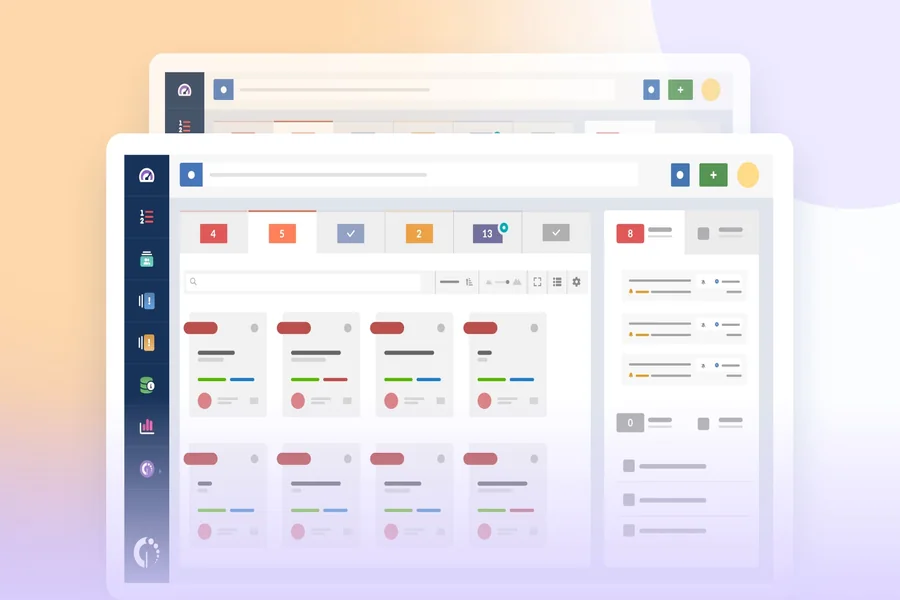
A customer portal moves the conversation from email into one structured space, where each client sees only their own data through role-based access. Based on the Customer Care Management module, it brings the parts that make support and project work manageable:
Tickets with a clear status. A ticket moves through defined stages–open, waiting for approval, more details required, waiting for upload, on hold, resolved, closed. The customer reads the status without asking, which removes most status questions before they arrive.
SLA and response time in view. Key support indicators such as SLA compliance and response time are monitored in the same place the work happens, so commitments are visible, and support quality is something you can show.
One project dashboard. Projects, tickets, and deliveries are managed together, and a dashboard shows tickets by status and type alongside active work, so everyone reads the same picture.
Discussion and updates that stay in place. Real-time commenting keeps the conversation attached to the ticket or project; customizable change notifications tell each participant when something moves, and documents are shared against the record they belong to. An address book keeps the key contacts for each project in one place.
How does the customer portal setup work?
Making your data visible on the customer portal is a configuration task, and the sequence is short. You create a new page under the location you want it on the portal, connect it to the relevant data source, add the specific fields you want on the list, set the permissions for who can access it and the standard actions they can take, and preview the finished page live on the portal.
The module comes pre-configured for Microsoft Dynamics 365 Business Central and connects through the certified Xpand Portal Connector, so the heavy integration is already handled, and a working portal is typically ready within days. Because the pages are built through low-code configuration, routine changes stay in-house – you adjust what customers see yourself, without a developer.
Why this matters as you grow
Manual status updates scale with headcount: every new client adds another stream of email questions. A customer portal breaks that link, because self-service does not scale with the number of people answering email. The routine changes stay with you, the customization sits only where the business needs it, and the history of decisions lives in the portal, so a change of consultant no longer resets your knowledge to zero.
Where to start
Write down the access model first: who logs in, what each type of user sees, and which records stay private between clients. That one decision shapes every page you add afterwards.
The Customer Care Management module from Xpand Portal provides exactly this: a customer portal built for support and projects, with pre-configured pages for tickets, projects, and deliveries. The Xpand Portal Team can show you how it works in a demo.